Meta Business Verification for WhatsApp API: Why It Gets Rejected and How to Get It Right the First Time
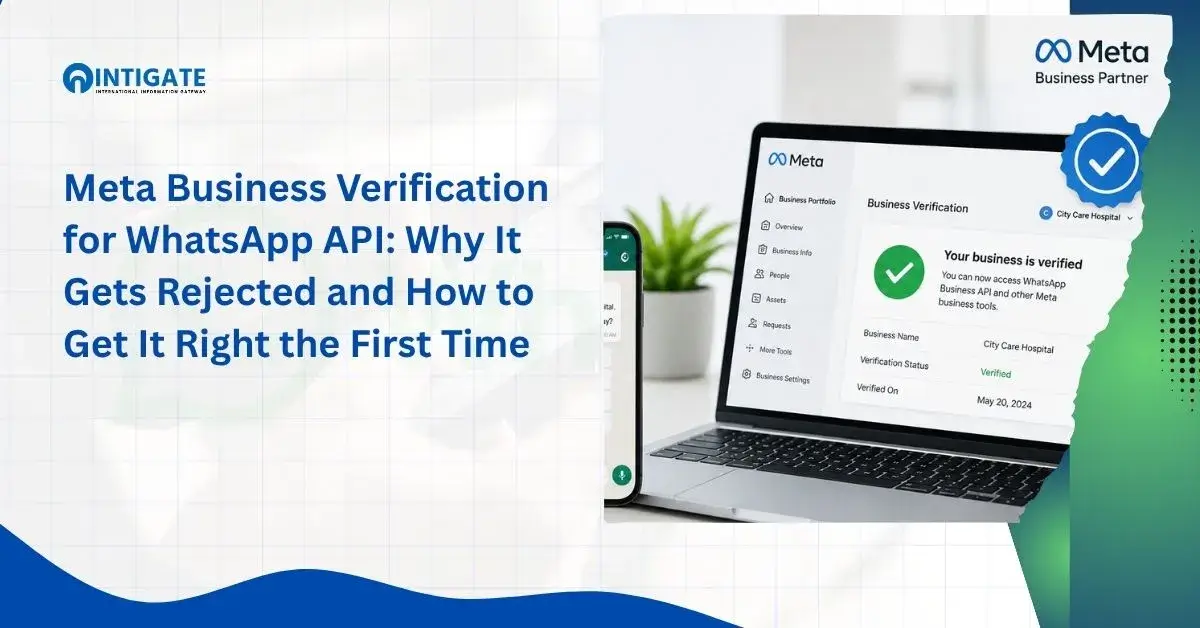
- Meta Business Verification checks two things: that your business is a real legal entity, and that your address or phone number is genuine and matches your documents.
- Most rejections come from a name, address, or document mismatch between your Meta Business Portfolio, your registration papers, and your public website, not from missing paperwork.
- Business Solution Partners can submit verification on a client’s behalf with a materially faster turnaround than the fully self-service path, according to Meta’s own developer documentation.
- The badge many guides still call the “Green Tick” is a separate, optional Official Business Account status, and Meta’s current documentation describes it as a blue checkmark with its own eligibility rules.
- If a resubmission fails a second time on a documented fix, the right move is to escalate through your Solution Provider or Meta Support, not to resubmit the same documents again.
Meta Business Verification for WhatsApp Business API is the step where most implementation timelines actually slip.
A business submits its documents expecting fast approval, gets rejected with a generic reason code, fixes the wrong thing, and resubmits only to be rejected again with the same reason code.
That loop is what stalls launches, not a missing document.
This has gotten more exacting as Meta has tightened its matching checks across the Business Portfolio, registration documents, and public website.
A mismatch anywhere in that chain triggers a rejection even when every document is genuine and unaltered.
If you’re evaluating a whatsapp api provider to manage this process, understanding exactly what Meta checks, where the self-serve and partner-assisted paths diverge, and what to do when a rejection repeats will save you from the loop above.
This guide covers what verification actually checks, the documents you need, the five most common reasons for rejection and their fixes, realistic timelines, including the one figure Meta itself publishes, what the “Green Tick” badge really requires, and what to do if a fix doesn’t resolve the rejection.
Intigate’s onboarding team reviews your documents against Meta’s matching requirements before you submit, so you don’t burn a resubmission cycle on an avoidable error.
Get a Free Onboarding Review →What Meta Business Verification Actually Checks
This process confirms two things: that your business is a real, registered legal entity, and that your address or phone number matches what you submitted.
Meta does not verify product quality, reputation, or website design; it verifies that the entity behind the WhatsApp number is who it claims to be.
Meta Business Verification: the process Meta uses to confirm a business’s legal identity and contact details before granting full access to the WhatsApp Business API.
This guide applies to the current WhatsApp Business Platform (Cloud API).
Phone numbers used with the API are registered for use with Cloud API specifically, and business phone numbers already active on the consumer WhatsApp Business app need to go through a separate connection flow rather than a fresh verification (Meta for Developers).
Completing verification is also a prerequisite for benefits beyond basic API access: increased messaging limits, additional business phone number capacity, and eligibility for Official Business Account status all depend on it (Meta for Developers).
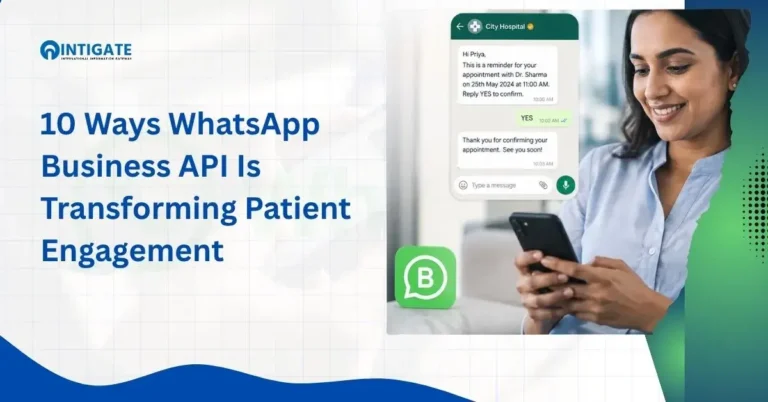
This matters for healthcare organizations especially, where WhatsApp Business API is transforming patient engagement but also carries stricter expectations around who is authorized to message patients at scale.
A clinic or hospital group applying for the API should expect the same legal-entity and address checks as any other business, with no shortcut for healthcare status, and will also want the higher messaging ceiling that verification unlocks before scaling patient communication.
There are two ways to complete this process, and the choice affects your timeline more than any other single decision:
| Self-Service Verification | Solution Partner-Assisted Verification | |
|---|---|---|
| Who submits | You, directly in Meta Business Manager | A Select or Premier Solution Partner, on your behalf |
| Documented turnaround | Standard review queue | Materially faster than self-service (Meta for Developers) |
| Control over the process | Full control, you manage every resubmission | Partner manages resubmissions and escalation |
| Best fit | Businesses with in-house Meta Business Manager experience | Businesses on a fixed launch date, or after a first rejection |
Only Meta can confirm the outcome of a specific application.
What businesses control is how closely their documents, website, and Business Portfolio details describe the same legal entity before submission, and which of the two paths above they choose.
Documents You’ll Actually Need
Legal Entity Proof (Business Registration, GST/Tax Certificate)
Meta needs a government-issued document proving your business exists as a legal entity.
Depending on your country, this typically includes a certificate of incorporation, a business registration certificate, or a tax or GST registration document.
The name on this document must match the business name entered in your Meta Business Portfolio exactly, not a shortened or trading version of it.
Address and Phone Proof
Meta separately verifies that your business address and phone number are genuine and traceable to the same legal entity.
Accepted proof commonly includes a utility bill, a bank statement, or an official government filing that lists your registered address.
The phone number used for the WhatsApp Business API must not already be active on a personal WhatsApp or WhatsApp Business app account.
Setting Up Your Meta Business Portfolio First
Before submitting any document, your Meta Business Portfolio needs to reflect the exact legal name and address you’re about to prove.
Skipping this step is one of the most common reasons a technically correct document still gets rejected, because Meta is matching your documents against what’s already entered, not evaluating the documents in isolation.
- Create or claim your Meta Business Portfolio using your full legal business name, not a trade name or nickname.
- Enter your registered address exactly as it appears on your legal entity document.
- Add an authorized admin whose identity matches the business’s official records.
- Confirm your business category accurately reflects what your business does.
- Enable two-step verification on the account before requesting any status upgrade, since it’s a prerequisite for Official Business Account requests later, not just a security setting.
- Only then upload your legal entity and address proof for review under Business Settings > Security Center.
Confirmed document types include business registration certificates, tax or GST certificates, utility bills, and bank statements.
This list reflects what multiple verification guides confirm as accepted formats; it is not exhaustive, and Meta’s own Business Help Center should be treated as the final authority on edge cases and country-specific document types.
The 5 Most Common Rejection Reasons (and the Fix for Each)
Implementation teams handling verification at volume see the same five triggers cause the majority of rejections.
Addressing these before submission is the highest-leverage step in the entire process.
Business Name Mismatch Across Documents
The name in your Meta Business Portfolio, on your registration certificate, and on your website must be identical.
A trade name like “Zaple” sitting next to a legal entity name like “Zaple Global Technologies Pvt Ltd” reads as a mismatch to Meta’s reviewers, even though both refer to the same business.
Fix: Submit under the exact legal entity name, and add a footer line on your website connecting the trade name to the legal entity, for example: “[Trade Name] is operated by [Legal Entity Name], registered at [Address].”
Expired or Illegible Documents
Reviewers reject scans with cropped edges, glare, or low resolution just as often as they reject expired ones, because both fail the same check: can the document be read and confirmed as current?
Fix: Re-scan at full resolution with all four edges visible, and confirm the expiry date before upload.
Wrong Language Code or Untranslated Local Documents
Submitting documents in a regional language without a certified translation is a frequent issue for applicants in India and other multilingual markets.
A Bulk WhatsApp Marketing Service in India provider with local document experience is often faster here specifically because it already knows which translation formats Meta accepts by region, not because of general WhatsApp expertise.
Fix: Provide a certified translation alongside the original document rather than an informal one.
Address Proof That Doesn’t Cover Phone Verification
Some businesses submit a registration address that differs from where the phone number is registered, which Meta flags as inconsistent even when both addresses are legitimate business locations.
Fix: Use address proof and phone registration details that point to the same physical location, or clearly document the relationship between locations if the business operates from more than one site.
Website Doesn’t Clearly Represent the Business
If a website doesn’t display the legal business name, registered address, and a working privacy policy, Meta cannot confirm the website belongs to the entity applying for verification, regardless of how established the business actually is.
Fix: Add the legal name, registered address, and a live privacy policy link to the website’s footer, contact page, and terms of service before submitting.
If a Fix Doesn’t Resolve the Rejection
Resubmitting the same documents against the same rejection reason without confirming the actual cause is the single most common way applicants burn multiple review cycles.
If a corrected resubmission is still rejected, escalate through your Solution Provider’s support channel or Meta Support directly rather than resubmitting a third time on assumption.
Intigate’s onboarding team handles verification for you end-to-end, including this escalation step, which is usually faster than diagnosing a repeat rejection alone.
Realistic Timelines (Not Just the Best Case)
This process rarely completes in the single day some providers advertise.
Approval windows depend on document quality, business category, and how many resubmission cycles a mismatch triggers.
| Scenario | Typical Timeline | What Drives It |
|---|---|---|
| Best case (clean first submission) | 1 to 3 business days | Exact name and address match on the first try |
| Typical case | 1 to 2 weeks | One resubmission to correct a minor mismatch |
| Extended case | 3 to 6 weeks | Repeated rejections, regulated-industry review, or translation delays |
These ranges reflect commonly observed outcomes rather than a figure Meta publishes; treat them as planning guidance, not a guarantee.
The one turnaround claim Meta does document directly is that Solution Partner-assisted submissions move faster than the self-service path (Meta for Developers), which is why partner-managed onboarding is the more predictable option when a launch date is fixed.
Every extra review cycle also has a cost beyond time.
A stalled launch means marketing and support workflows built around the API sit idle, which is worth weighing against WhatsApp API for business charges when planning rollout budget.
Intigate’s managed onboarding process targets a 24-72 hour managed onboarding window as the realistic outcome when documents are reviewed and corrected before submission, rather than after a rejection.
Business Verification vs. Official Business Account (“Green Tick”)
These two get confused constantly, and the confusion causes real delays, so it’s worth a direct comparison before deciding whether you need both.
| Business Verification | Official Business Account (commonly called “Green Tick”) | |
|---|---|---|
| What it does | Confirms your business is a real legal entity | Adds a checkmark badge next to your business name in WhatsApp |
| Required for API access | Yes | No, optional |
| Applies at what level | Your Meta Business Portfolio | An individual business phone number |
| Where you apply | Meta Business Manager, Security Center | WhatsApp Manager, under Phone Numbers > Profile |
| Prerequisite | Legal entity and address documents | Two-step verification enabled; number not a test account or personal WhatsApp Business app number |
| If rejected | Fix the mismatch and resubmit | Must wait 30 days before submitting another request (Meta for Developers) |
Many guides still call this badge the “Green Tick,” a name that stuck from the consumer app’s earlier visual design.
Meta’s current developer documentation describes it as a blue checkmark tied to Official Business Account (OBA) status, and its eligibility isn’t based on “high search volume” or general brand recognition, a claim that circulates widely but doesn’t match Meta’s own published criteria.
Eligibility instead centers on policy compliance and account standing, and the badge is requested per phone number directly in WhatsApp Manager, not as a blanket business-level status.
An OBA request that gets denied isn’t a dead end, but it does come with a fixed cooldown: Meta requires a 30-day wait before resubmitting (Meta for Developers).
In the meantime, your business profile fields (photo, description, website, email) remain fully editable, so there’s no reason to leave that profile incomplete while waiting on badge status.
Intigate assists with Official Business Account and Green Tick applications for businesses that have already completed core Business Verification and want the badge as a discoverability and trust signal on top of it.
Intigate’s onboarding team pre-checks your legal name, address proof, and website for the exact mismatches Meta rejects most often, before you ever submit.
Request a Demo →Conclusion
Meta Business Verification for WhatsApp Business API comes down to one principle: every document, your website, and your Meta Business Portfolio need to describe the same legal entity.
Most rejections aren’t about missing paperwork; they come from a name, address, or language mismatch that a careful pre-check would have caught, or from resubmitting without diagnosing what actually triggered the rejection.
Realistic timelines run from a few days to several weeks, and the one lever Meta documents directly for speeding this up is Solution Partner-assisted submission.
Treating verification as a matching exercise, not a document upload, and knowing when to escalate rather than resubmit blind, is what separates a fast approval from a stalled launch.
FAQ
What is Meta Business Verification for the WhatsApp Business API?
It’s Meta’s process for confirming that a business applying for API access is a real, registered legal entity with a verifiable address or phone number. It checks document authenticity and consistency, not product quality or reputation.
How long does Meta Business Verification typically take?
A clean first submission commonly clears in one to three business days. Applications needing one resubmission typically take one to two weeks. Repeated rejections or translation issues can extend this to several weeks. Solution Partner-assisted submissions are documented to move faster than the self-service path.
Is the “Green Tick” the same as Business Verification?
No. Business Verification confirms your legal entity and is required for API access. The badge many call the “Green Tick,” which Meta’s current documentation describes as a blue checkmark for Official Business Account status, is a separate, optional, per-phone-number badge with its own eligibility rules.
Can I reapply immediately after rejection?
For Business Verification, yes, but fix the specific documented mismatch first, or Meta will flag it again. For Official Business Account requests, Meta requires a 30-day wait before resubmitting.
Does Intigate handle verification for me?
Yes. Intigate reviews your legal documents, Business Portfolio details, and website against Meta’s matching requirements before submission, manages resubmissions, and escalates directly if a documented fix doesn’t resolve a rejection.